Project Zomboid Sandbox, Loot, and World Save Settings
Project Zomboid keeps the sandbox rules and the world save in separate locations. This guide explains how to edit the active configuration without accidentally opening another world or losing the settings you already made.
Find the active configuration
Open Startup and note the value of Server Name. With the default value mikasa.host, the important paths are:
.cache/Server/mikasa.host_SandboxVars.lua
.cache/Server/mikasa.host.ini
.cache/Saves/Multiplayer/mikasa.host/
| Path | Contents |
|---|---|
{ServerName}_SandboxVars.lua | Zombies, loot, time, weather, vehicles, infection, and other world rules |
{ServerName}.ini | Multiplayer settings, password, Workshop mods, PvP, whitelist, and public server information |
Saves/Multiplayer/{ServerName}/ | The world, explored cells, characters, containers, and other progress |
Changing Server Name in Startup creates a new set of configuration files and a new save directory. It does not rename or migrate the old files. If mods, loot settings, or the world appear to have disappeared, restore the previous Server Name first.
Edit SandboxVars.lua
- Open Files.
- Navigate to
.cache/Server/. - Open
{ServerName}_SandboxVars.lua. - Change only the required values.
- Preserve commas, braces, and quotation marks.
- Press Save, then start the server.
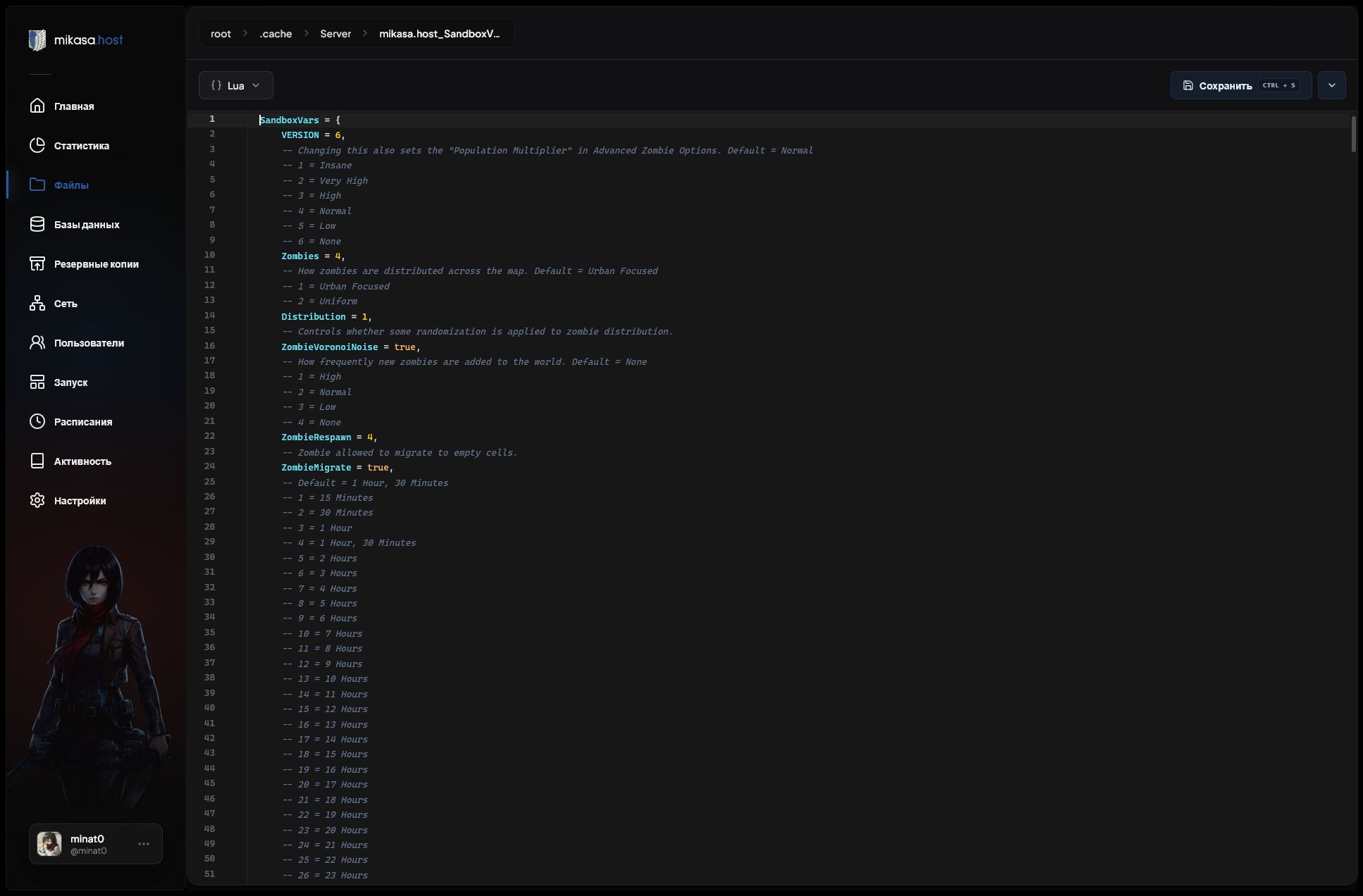
Each setting has comments directly above it. These comments list the valid values for the installed game build:
-- 1 = Insane
-- 2 = Very High
-- 3 = High
-- 4 = Normal
-- 5 = Low
-- 6 = None
Zombies = 4,
Use the comments from your own file instead of copying a numeric value from an old guide. Project Zomboid changes parameter names and value ranges between builds.
Frequently changed sandbox settings
Use Ctrl + F in the file editor to find a setting. The exact set of parameters depends on the selected stable or beta branch.
| What you want to change | Useful search terms |
|---|---|
| Zombie population and distribution | Zombies, Distribution, Population |
| Zombie respawn and migration | ZombieRespawn, ZombieMigrate, Respawn |
| Day length and starting time | DayLength, StartMonth, StartDay, StartTime |
| Weather and fog | ClimateCycle, FogCycle, Rain |
| Water and electricity shutoff | WaterShut, ElecShut |
| Infection and mortality | Transmission, Mortality, Infection |
| Vehicles, fuel, and condition | Car, Vehicle, Gas, FuelStation |
| Loot and item rarity | Loot, Rarity, Food, Weapon, Ammo, Medical |
Loot settings
Depending on the game build, loot may be controlled by a general multiplier or by separate categories such as food, canned food, literature, medicine, weapons, ammunition, survival equipment, mechanics, and other items.
Read the comment above every matching option and use only a listed value. Do not assume that a larger number always means more loot: the scale can differ between parameters and versions.
Loot is generated when an area or container is first processed. Changing loot rarity usually affects unexplored areas and future loot respawns; it does not reliably refill containers that players have already searched.
Which settings apply to an existing world?
Many rules, including day length, zombie behaviour, loot respawn, and some vehicle settings, can affect an existing world after a restart. However:
- starting date and initial world conditions do not recreate an existing world;
- loot already generated in visited areas may remain unchanged;
- population changes can take time and depend on respawn and migration rules;
- map or world-generation changes normally require a new world.
If you need a completely fresh result, reset the world.
Back up the world
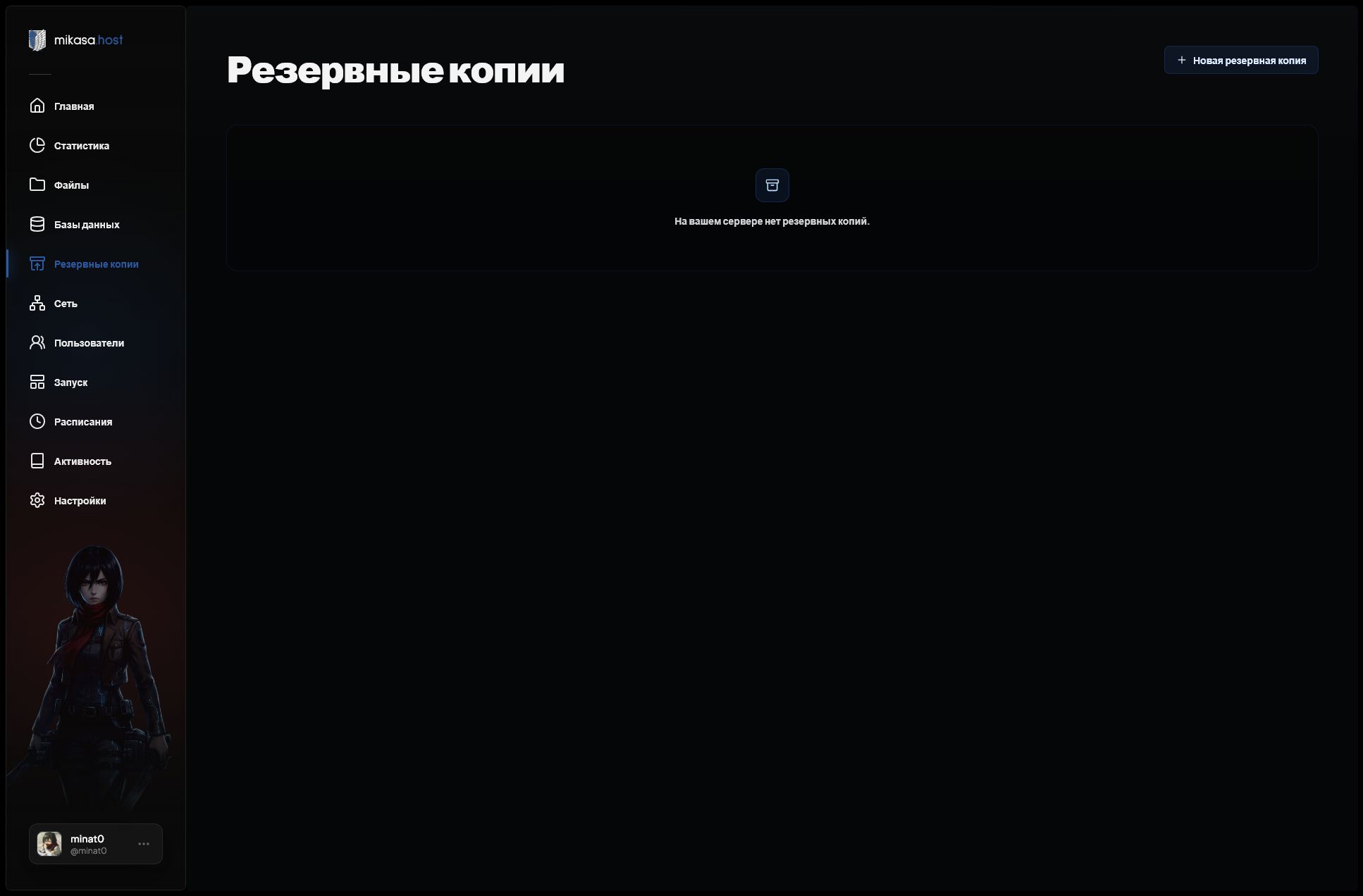
To save the current server state, stop the server, open Backups, click New Backup, and wait for it to complete.
Restore the world
- Stop the server.
- Open Backups.
- Open the actions menu for the required backup and choose Restore.
- Wait for restoration to finish before starting the server.
If you restore files manually, keep the names consistent:
.cache/Server/{ServerName}.ini
.cache/Server/{ServerName}_SandboxVars.lua
.cache/Saves/Multiplayer/{ServerName}/
Restoring only the world while leaving an incompatible configuration or mod list can prevent the server from starting correctly.
Troubleshooting
Changes are not applied
- Confirm that you edited files matching the current Server Name.
- Stop the server before editing and restart it afterward.
- Check commas and braces in the Lua file.
- Read the console for a sandbox parsing error.
- Remember that some settings affect only new or unexplored areas.
The server created default settings again
The file may have an invalid Lua structure, the file name may not match Server Name, or the server may be using another configuration set. Compare the active names and check the console error.
The world or characters disappeared
Check Server Name first. The original world is often still present in .cache/Saves/Multiplayer/ under its previous name.
Mods disappeared after changing settings
Workshop entries are stored in {ServerName}.ini, not in _SandboxVars.lua. If Server Name changed, copy Mods= and WorkshopItems= to the active .ini file or restore the previous name. See Adding Steam Workshop mods.